MS Project to Primavera P6 Migration: A Field Guide for Construction Schedulers (2026–2027)
How to move a live construction programme from Microsoft Project into Primavera P6 without breaking the logic, the float, or your credibility with the client.
By Dr. Hassan Eliwa, PhD — Founder of PMMilestone.org & PMMilestone.com · 2026-09-10
MS Project to Primavera P6 Migration: A Field Guide for Construction Schedulers (2026–2027)
By Dr. Hassan Eliwa, PhD — Founder of PMMilestone.org & PMMilestone.com · Updated 2026-09-10 · https://pmmilestone.com/career-guides/ms-project-to-primavera-p6-migration-field-guide
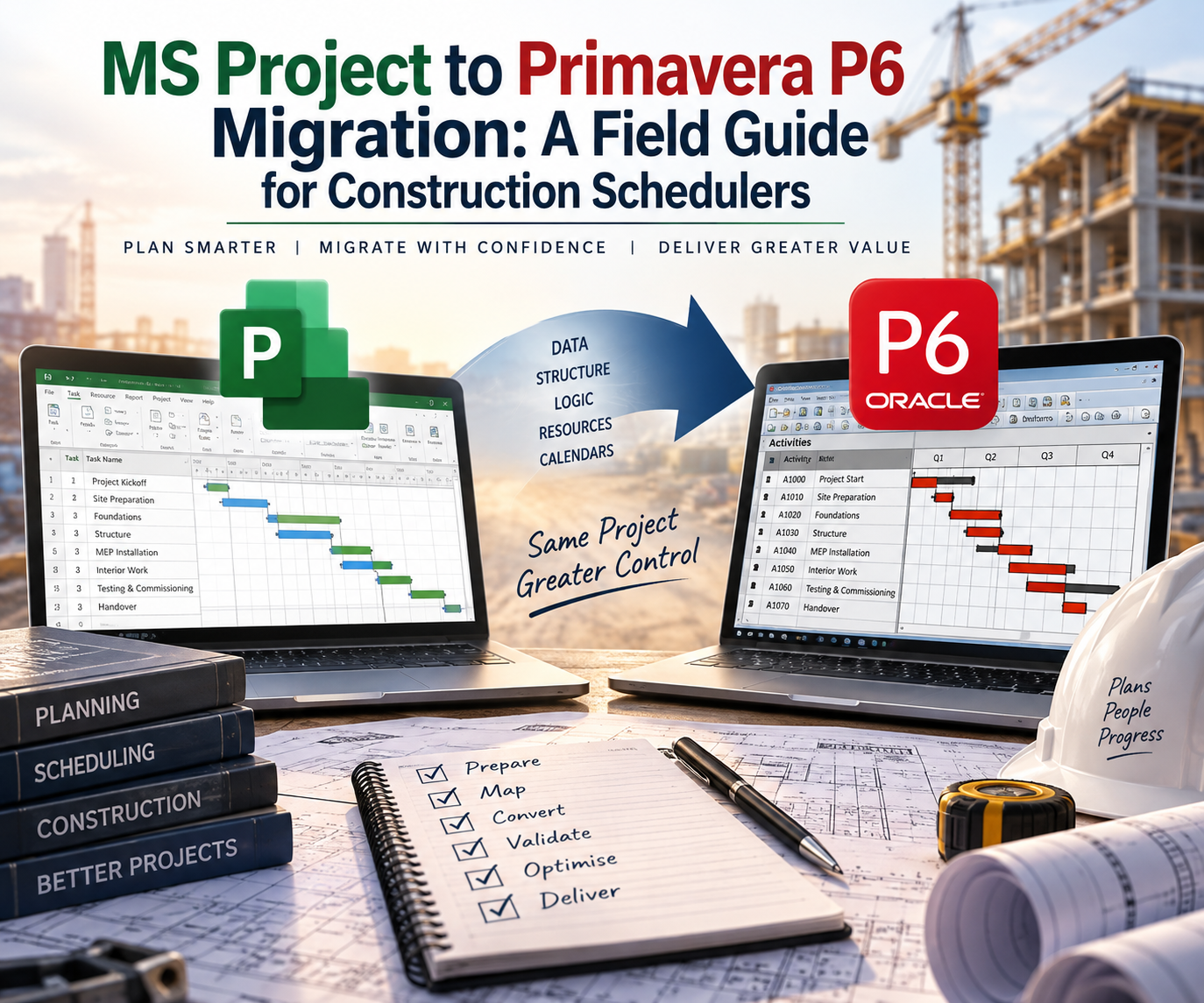
Every few months someone sends me a Primavera P6 schedule that was "converted from MS Project last week" and asks why the completion date moved nine days when nothing changed on site. The honest answer is nearly always the same. The import worked. Nobody checked what the import actually did.
In 2026 that trickle has become a queue. Microsoft retires Project Online on 30 September 2026, and plenty of contractors who ran their programmes in Project Web App are using the moment to rethink their tools. At the same time, more owners and public agencies are writing native P6 submissions straight into their contract specifications. So a lot of schedules are crossing from one tool to the other right now, many of them mid-project, with progress, baselines and delay notices already attached.
This guide is the process I use, and teach, for that crossing. It isn't a click-by-click software tutorial. It's the thinking a scheduler needs before, during and after the import, so the P6 version tells the same story as the MS Project original. And where it doesn't, so you can explain exactly why.
- ▸ The import takes minutes. The reconciliation afterwards is the real job, and it deserves a plan of its own.
- ▸ MS Project and Primavera P6 both run the Critical Path Method, but they make different assumptions about calendars, constraints, float, progress and the data date. Those assumptions, not software bugs, explain most "mystery" date movement.
- ▸ Take a schedule fingerprint before you export: finish date, activity and relationship counts, critical path, and float on key milestones. Without it you can't prove the conversion is faithful.
- ▸ Clean the schedule inside MS Project first. Fixing typed-date constraints, manual tasks and summary-task logic at the source costs a fraction of fixing them in P6.
- ▸ Never submit a converted schedule until every variance against the fingerprint is either eliminated or explained in writing.
Quick answer: can you import an MS Project schedule into Primavera P6?
Yes. P6 Professional imports Microsoft Project data through the Microsoft Project XML format (and the older MPX format), using an import template that controls how fields, calendars and custom fields map across. You need an Admin Superuser account with access to all resources to run an MSP XML import, and any cost-type or number-type custom fields in MS Project have to be mapped to matching user-defined fields (UDFs) in P6, or the import throws errors.
What the import does not do is make the two scheduling engines agree with each other. That part is on you, and it's what the rest of this article is about.
Why so many schedules are moving to P6 in 2026
Let's get the Microsoft news straight first, because I've already heard it misquoted in site meetings. It's Project Online, the SharePoint-based Project Web App service, that is being switched off. The desktop application most schedulers simply call "MS Project" isn't going anywhere.
| Microsoft product | Status | What it means for a scheduler |
|---|---|---|
| Project Online / Project Web App | Retires 30 September 2026. No access to the service or its data afterwards. | Export every live plan to MPP and XML, and archive it, well before the cut-off. |
| Project for the web | Retired in August 2025; features folded into Microsoft Planner. | Fine for task lists. Rarely a credible construction master programme. |
| Project desktop (Professional) | Still supported, subject to each version's lifecycle. | You can still open, clean and export MPP files, which is exactly what a migration needs. |
| Project Server Subscription Edition | Still supported on-premises. | An option for organisations that want to stay inside Microsoft PPM. |
Table 1 — What Microsoft is retiring, and what it isn't.
The retirement is only part of it. On the projects I work around, three other pressures keep pushing schedules towards P6:
- Contract specifications that require native P6 files (usually XER) for the baseline and every monthly update, particularly on public infrastructure and larger commercial work.
- Delay and extension-of-time claims. Forensic schedule analysis is overwhelmingly done on P6 data, so an MS Project programme often gets converted once a dispute starts. That's the worst possible moment to do it.
- Joint ventures where one partner plans in MS Project and the lead partner reports to the client in P6.
If a dispute is already running, keep the original MPP untouched and convert a copy. The native file is evidence; the converted file is an analysis tool. Blurring the two hands the other side an easy argument about data integrity — see EOT claim preparation for how records get tested in practice.
The 6-stage migration workflow
| Stage | What happens | Output |
|---|---|---|
| 1 | Freeze & fingerprint — lock the MPP; record dates, counts, float | Schedule fingerprint |
| 2 | Clean at the source — manual tasks, summary logic, typed dates | Clean MPP file |
| 3 | Export to XML — Save As › XML, named with the status date | MSP XML file |
| 4 | Import with a template — sandbox EPS, UDF mapping, ID rules | Unscheduled P6 project |
| 5 | F9, log & reconcile — data date = status date; compare | Variance register |
| 6 | Baseline & document — re-baseline; 1–2 page conversion report | Submission-ready XER |
Figure 2 — The six stages of an MS Project to Primavera P6 migration, each with an output someone else can check. Gate rule: a second person checks each output before the next stage starts.
Treat the conversion like a small project with its own gates. Each stage produces something tangible that a second person can review before you move on. On a 300-task fit-out programme the whole thing might take a day. On a 3,000-activity, resource-loaded hospital schedule, budget one to two weeks, most of it in Stage 5.
Stage 1 — Freeze the source and take a fingerprint
Agree a cut-off with the project team and stop editing the MS Project file. Save three things side by side: the native MPP, an XML export, and a PDF of the Gantt at the status date. Then record what I call the schedule fingerprint: a short set of numbers that describes how the schedule behaves, not just how it looks.
| Metric | Where to find it in MS Project | Why it matters once you're in P6 |
|---|---|---|
| Project finish date | Project summary task / Project Information | Your first sanity check after scheduling (F9) |
| Status date | Project › Status Date | It becomes the P6 data date |
| Task and milestone count (no summaries) | Filter out summary tasks and count | Proves nothing was dropped on import |
| Relationship count | Export predecessors to Excel and count | Links on summary tasks are the usual casualty |
| Critical tasks and driving sequence | Critical filter, plus a critical path Gantt PDF | The P6 critical path must tell the same story |
| Total slack on 10–15 key milestones | Total Slack column | Exposes calendar and float-setting differences |
| Constraints by type | Group by Constraint Type | Hidden Start No Earlier Than constraints show up here |
| Hours per day / per week | File › Options › Schedule | Drives how durations are displayed in days |
Table 2 — The schedule fingerprint: capture it before you export.
On a 2,000-task schedule this takes about an hour. It's the most valuable hour in the whole conversion, because it turns "the dates look about right" into a pass-or-fail test.
Stage 2 — Clean the schedule in MS Project first
This is where most of the value sits. Every problem you fix here is a problem you won't have to explain to the client's P6 reviewer later.
- Switch manually scheduled tasks to auto scheduled. P6 has no equivalent, and manual tasks carry dates that logic isn't driving.
- Move logic off summary tasks and onto the first or last detail task underneath. WBS elements in P6 can't hold relationships.
- Review every Start No Earlier Than constraint. MS Project quietly adds one whenever someone types a start date into an auto-scheduled task in a forward-scheduled project. Keep the ones that reflect a real access date or contract restriction; remove the rest.
- Delete blank rows and presentation-only "heading" tasks. P6 won't accept activities without names.
- Check the Hours per day option against your real working calendar (see the note below).
- Decide how elapsed durations and lags will be handled. A 7ed curing lag needs a deliberate P6 equivalent, usually a 7-day or 24-hour calendar.
- Copy MS Project's Unique ID into a text custom field and map it across, so every activity stays traceable to the RFIs, early warnings and delay notices that quote the old IDs.
MS Project stores durations in minutes and turns them into "days" using the Hours per day option under File › Options › Schedule. That option isn't linked to your calendar. If the site works 10-hour days and the option still says 8, a task typed as "5 days" is really 40 hours, which the calendar finishes in four working days.
P6 imports the 40 hours faithfully and, if it's set to use calendar-based hours, displays them as 4 days. Same work, same dates, different label — and a reviewer who thinks you've quietly shortened the durations. Fix the setting, or explain it, before anyone else notices.
Stage 3 — Export to XML
In MS Project, use File › Save As and choose XML Format. Put the status date in the file name (for example, TowerA_Prog_Upd14_2026-06-30.xml) so there's never an argument later about which version was converted. I'd resist reaching for a third-party converter on the first attempt unless the native route genuinely fails. Every extra tool adds another field mapping you'll have to verify.
Stage 4 — Import into P6 with a deliberate template
Import into a sandbox EPS node, never straight into production. The import wizard lets you create a new project, add into an existing one, or replace or update an existing project. The last two are powerful and unforgiving: pointed at the wrong project, they can overwrite relationships in a live schedule. Before you click Finish, settle four things:
- Activity ID convention. Decide it now. Renumbering after the first submission breaks every cross-reference in correspondence.
- Calendars. Import as project calendars for the first pass, then map to your organisation's global calendars once you've proven they behave identically.
- UDF mapping. Map the MS Project Unique ID, any cost or number fields, and any codes you rely on for reporting.
- Security. Confirm the importing account has Admin Superuser rights and access to all resources, or the job will fail partway.
Stage 5 — Schedule, read the log, reconcile
Set the P6 data date to the MS Project status date, press F9 with the Log to file option ticked, and read the schedule log before you look at a single bar. It lists open ends, constraints, out-of-sequence progress and activities with no predecessors or successors. Then compare the result against your fingerprint.
| Check | Acceptable result | If it fails, look at… |
|---|---|---|
| Project finish date | Identical, or variance fully explained | Data date, calendars, constraints, Hours per day |
| Activity count | Exact match | Blank rows, presentation tasks, export filters |
| Relationship count | Exact, or losses traced to summary tasks | Summary-task logic; duplicate links |
| Critical path | Same driving sequence | Float calculation option; lag calendar |
| Key milestone float | Within ±1 day | Calendars and hours-per-day display |
| Constraints | Same count and types | Typed dates; Mandatory vs Start On |
| Open ends | No new open ends | Dropped links; deleted summary rows |
Table 3 — Reconciliation tolerances: match, explained variance, or unexplained.
First, schedule with P6 options set to mirror MS Project as closely as you can — for example, total float computed as the smallest of start and finish float. That pass proves the conversion is faithful. Then switch to the settings your contract or specification requires and schedule again.
Now you can separate conversion variance (did the data survive?) from methodology variance (what changed because P6 is set up differently?). Mixing the two is how a two-day problem becomes a two-week argument.
Stage 6 — Re-baseline and write a conversion report
P6 baselines are copies of a project. Baselines stored inside an MPP file don't arrive as usable P6 baselines, so plan to re-establish the baseline in P6 and record how you did it. Then write a one- or two-page conversion report: source file and status date, import template, schedule options used, the fingerprint comparison, and a plain-English explanation of every variance. Submit it with the first P6 update. It's a small document that heads off a lot of rejection letters.
Real-world example: the tower that "slipped" two weeks during conversion
Here's a pattern I see all the time. Picture a residential tower with the structure running level by level on a two-week slab cycle. The MS Project status date is the end of week 6. Levels 4 and 5 are finished and statused properly. But the level 5 columns and core, and the façade brackets for levels 4–6, were planned to start before the status date, haven't started, and nobody updated them. MS Project is perfectly happy to show that unstarted work sitting in the past.
P6 is not. The data date is a hard line: remaining work can't be scheduled before it. The first F9 pushes the level 5 columns to the data date, and the rest of the structure follows like dominoes.
Figure 3 — Gantt comparison: MS Project dates (light bars) against P6 dates after the first F9. Unstarted work behind the status date moves to the data date and the roof slab finishes two weeks later.
The P6 schedule isn't wrong. It's the first honest version of that programme in two months. The fix belongs in MS Project, before export: use Project › Update Project › Reschedule uncompleted work to start after the status date. That way the slip appears in the right reporting period, in the native tool, and the converted file matches the source on day one.
MS Project vs Primavera P6: the differences that actually move dates
Most comparison articles talk about price, licensing and user interfaces. That's useful when you're choosing software. When you're converting a schedule, these are the behaviours that matter:
| Topic | Microsoft Project | Primavera P6 | What to do |
|---|---|---|---|
| Data date | Status date is optional; unfinished work can sit in the past | Remaining work can never start before the data date | Reschedule uncompleted work in MSP before export |
| Durations | Stored in minutes; shown in days via Hours per day | Stored in hours; day display depends on admin settings | Align Hours per day with the real calendar |
| Constraints | One constraint per task, plus a separate deadline | Primary and secondary constraints; no deadline field | Map each type deliberately; check Mandatory vs Start On |
| Typed dates | Create Start No Earlier Than constraints automatically | Arrive as Start On or After constraints | Remove unjustified ones before export |
| Relationships | Only one link between any two tasks | Several links allowed, e.g. SS and FF together | Rebuild SS + FF pairs for linear work |
| Lags | Working-time or elapsed lag (e.g. 7ed) | Measured on the calendar chosen in Schedule Options | Choose the lag calendar consciously; test curing lags |
| Total float | Total slack reported as the smaller of start and finish slack | Start float, finish float, or smallest of the two | Match the setting for the fidelity check, then document |
| Critical path | Slack ≤ threshold (0 days by default) | Total float ≤ threshold, or Longest Path | Agree the definition with the client in writing |
| Level of effort | No true LOE; summary or fixed-duration tasks used | Level of Effort and WBS Summary activity types | Convert preliminaries and supervision to LOE |
| Progress | Depends on update method and options | Retained Logic, Progress Override or Actual Dates | Use the method your contract specifies |
| Calendars | Base calendars, including work weeks for date ranges | Standard work week plus date exceptions | Rebuild seasonal calendars with exceptions |
| Baselines | Up to 11 stored inside the file | Separate baseline project copies | Re-establish in P6 and record the method |
Table 4 — Scheduling behaviour compared, with the action to take.
If you only remember three rows, make them the data date, typed-date constraints and hours per day. Between them they account for most of the date movement I get asked to explain.
Where the conversion effort really goes
The chart below is an illustrative issue log from a hospital expansion schedule of roughly 1,850 activities. The mix is typical of what I see on busy, multi-author MS Project programmes.
Figure 4 — Illustrative reconciliation log: activities flagged by issue type during conversion of a 1,850-activity schedule.
Look at the top bar. More than one in ten activities carried a Start No Earlier Than constraint that nobody had consciously set. Planners had simply typed dates into the start column during coordination meetings. Under DCMA-style checks these don't count as hard constraints, so they rarely raise alarms. But they stop activities moving earlier when predecessors finish early, and they make parts of the network look date-driven rather than logic-driven. In a delay analysis that distinction matters a great deal.
Common mistakes to avoid
- ✘ Treating the import log as quality assurance. A clean import log only tells you the file was readable. It says nothing about whether the schedule still behaves the same way.
- ✘ Importing straight into production. Use a sandbox EPS node until the reconciliation passes, and be very careful with Replace or Update Existing Project.
- ✘ Scheduling with the wrong data date. If the P6 data date doesn't equal the MS Project status date, every comparison afterwards is meaningless.
- ✘ Leaving typed-date constraints in place. They survive the import, they mask logic, and a client reviewer running a constraint report will find them before you do.
- ✘ Accepting default float and critical path settings. Check what the contract says about critical path definition and float calculation, then set P6 to match.
- ✘ Renumbering activity IDs without a cross-reference. Keep the MS Project Unique ID in a UDF, permanently.
- ✘ Submitting without telling the client it was converted. Disclose it, attach the conversion report, and move on. Surprises are what turn a routine review into a formal rejection.
Expert tips from the scheduling desk
- Count relationships, not just dates. A finish date can match by coincidence while 40 links are missing somewhere in the middle of the network.
- Create a
CONVactivity code with values such as Clean, Adjusted and Rebuilt. Every activity you touched is then filterable and auditable. - Test each calendar with a one-activity dummy project. Put a 10-day activity across a public holiday and check that both tools give the same finish date.
- Rebuild SS + FF pairs on linear work. Pipelines, pavements and façade runs were often modelled with a single SS lag in MS Project because it only allows one link between two tasks.
- Convert site supervision and preliminaries to Level of Effort so they stretch and shrink with the work they span.
- Keep both files under the same naming convention and store them together. Future-you, or a claims consultant, will be grateful.
Lessons learned from real conversions
Field note 1 — The hospital schedule with 212 invisible constraints
On a large healthcare programme, removing unjustified Start No Earlier Than constraints before export changed the critical path. A mechanical services sequence that had looked comfortable turned out to be driving completion once logic, not typed dates, was in charge. Nobody enjoyed that discovery, but it came out during conversion rather than in the middle of an extension-of-time negotiation.
Lesson: a conversion is an audit whether you plan it that way or not. Plan it that way.
Field note 2 — The motorway night works that "lost" 20% of their durations
Night works ran four 10-hour shifts a week, but MS Project's Hours per day option still said 8. In P6, using calendar-based hours, every 5-day activity displayed as 4 days. The client's reviewer flagged dozens of "reduced durations". Not one date had changed. A single paragraph in the conversion report, with a worked example, closed the comment.
Lesson: explain display differences before the reviewer asks about them.
Field note 3 — The fit-out programme whose finish date matched by luck
A joint-venture fit-out programme converted with a finish date identical to the source, and everyone relaxed. The relationship count told a different story: 63 links had been attached to summary tasks and simply disappeared. The float on two floors of services was fiction until the logic was rebuilt.
Lesson: a matching finish date is a hypothesis, not a result.
Template: pre-submission conversion checklist
| Check | Evidence to keep | |
|---|---|---|
| ☐ | Source MPP frozen; MPP, XML and Gantt PDF archived together | File names with status date |
| ☐ | Schedule fingerprint recorded | Fingerprint table (Table 2) |
| ☐ | Manual tasks converted; summary-task logic moved | Before/after counts |
| ☐ | Typed-date constraints reviewed and justified | Constraint register with reasons |
| ☐ | Hours per day aligned with calendars, or difference explained | Worked example |
| ☐ | Uncompleted work rescheduled after the status date | MSP update record |
| ☐ | Imported into sandbox EPS with documented template | Template name and settings |
| ☐ | Data date equals MS Project status date | Screenshot of Project Details |
| ☐ | Schedule log reviewed; open ends and out-of-sequence items resolved | Saved schedule log |
| ☐ | Fingerprint comparison complete; all variances explained | Variance register |
| ☐ | Contract float and critical path settings applied and recorded | Schedule Options screenshot |
| ☐ | Baseline re-established; conversion report issued with submission | Report reference |
Table 5 — Copy this checklist into your conversion report.
Final thoughts
Software migrations tempt us to think about software. A schedule conversion is really about evidence: can you show, with numbers, that the P6 programme describes the same plan, the same progress and the same risks as the MS Project file it came from? If you can, the client reviewer has very little to argue with. If you can't, the most sophisticated P6 layout in the world won't save the submission. Freeze, fingerprint, clean, import, reconcile, document. It's not glamorous work, but it's the kind that keeps projects out of arguments.
If you want to sharpen the P6 side of this work, how expert planners read a P6 schedule in ten minutes covers the review habits a reviewer will apply to your converted file, the negative float case study shows what happens when constraints go unexamined, and the Riverside office building tutorial walks through building a clean P6 programme from scratch. For the underlying terminology, the PMMilestone Encyclopedia A–Z defines every term used above.
Frequently Asked Questions
Can Primavera P6 open an .mpp file directly?
Not for current versions of MS Project. P6 Professional's native MPP support only ever covered very old versions of Project. For modern files, open the MPP in Project desktop, save it as XML, and import the XML into P6.What happens to Project Online schedules after 30 September 2026?
Microsoft has said the service and the project data inside it won't be accessible after retirement. If you have live programmes in Project Web App, open them in Project desktop, save MPP and XML copies, and archive them before the date. Don't leave it to the last week.Why did my finish date change after importing into P6?
The usual causes, in rough order, are: unstarted work sitting behind the status date being pushed to the P6 data date; calendar and hours-per-day differences; typed-date or mandatory constraints behaving differently; and different lag calendar or float calculation settings. Compare against your fingerprint to find which one applies.Does my MS Project baseline come across to P6?
Don't rely on it. Baselines stored inside an MPP don't arrive as usable P6 baseline projects. Re-establish the baseline in P6, keep the original MPP as the record of the approved baseline, and document the method in your conversion report.How long does an MS Project to P6 conversion take?
In my experience, a clean schedule of a few hundred activities takes a day including reconciliation. A resource-loaded programme of 2,000–3,000 activities with progress and multiple calendars typically needs one to two weeks, and most of that time is reconciliation, not importing.Should I convert the schedule or rebuild it from scratch in P6?
Rebuild when the schedule is small, early in its life, or so poorly structured that cleaning it would take longer than starting again. Convert when the project is progressed, when correspondence references existing activity IDs, or when the schedule may become evidence in a claim.What's the difference between XER and XML files?
XER is Oracle's proprietary exchange format for moving projects between P6 databases. P6 XML is Oracle's XML format for projects and baselines. Microsoft Project XML is a different schema altogether, and it's the one you use to bring an MS Project schedule into P6 before exporting an XER for submission.Is an MS Project schedule acceptable for delay analysis?
It can be analysed, and plenty of good analysis has been done in MS Project. But because most forensic tools and reviewers work natively with P6 data, schedules are frequently converted during disputes. If that happens, preserve the native file and document the conversion thoroughly.Do I need special P6 permissions to run the import?
Yes. An MSP XML import requires an Admin Superuser account with access to all resources. Without it the import can fail partway through, leaving a half-populated project that is easier to delete than to repair.
People also ask
Follow-up questions practitioners search for next — each one points to the calculator, template or reference entry that answers it.
Where do I look up the terms in this guide?
Single-line definitions for 1,200+ project-management and controls terms. PM Glossary on PMMilestone.org ↗
Which books deepen this career path?
Field handbooks on project controls, P6 scheduling and EVM. Books & Publications ↗
Which academy track maps to this career step?
Structured progression from planner to programme controls director. Project Controls Academy ↗
Which calculator should I learn first?
PV / EV / AC / CV / SV / CPI / SPI in one workbook — the gateway tool. EVM Calculator ↗