How to Import an MS Project Schedule into Primavera P6 Without Losing Logic
A field-tested migration checklist for planners moving schedules after the Project Online retirement.
By Dr. Hassan Eliwa, PhD — Founder of PMMilestone.org & PMMilestone.com · 2026-10-01
How to Import an MS Project Schedule into Primavera P6 Without Losing Logic
By Dr. Hassan Eliwa, PhD — Founder of PMMilestone.org & PMMilestone.com · Updated 2026-10-01 · https://pmmilestone.com/career-guides/how-to-import-ms-project-schedule-into-primavera-p6-without-losing-logic
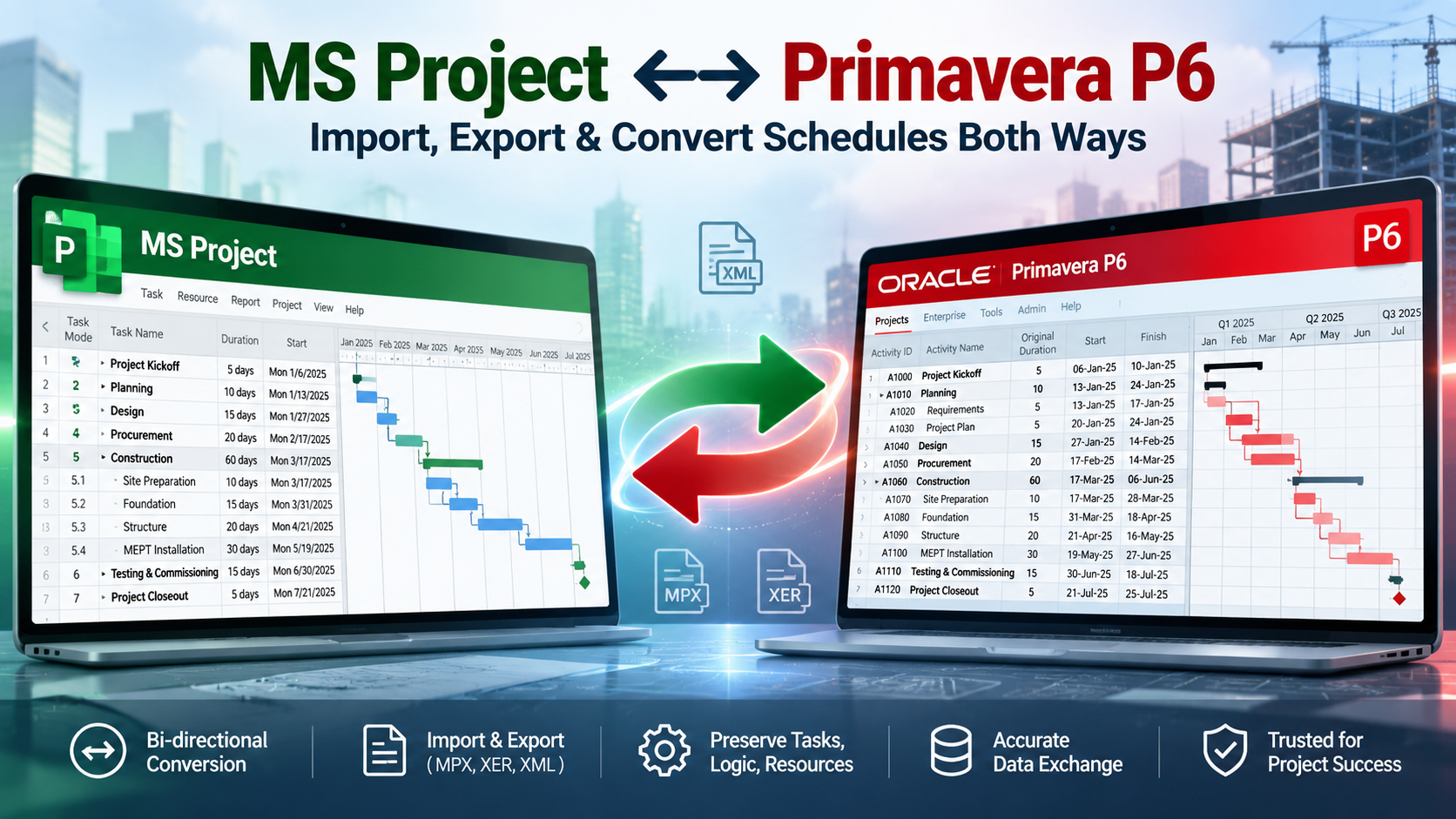
On 30 September 2026, Microsoft switched off Project Online. The desktop version of Microsoft Project carries on, but every planner who kept live schedules in Project Web App has spent the last few months pulling .mpp files out of the cloud. A surprising number then received the same follow-up request from a client or head contractor: “Can you resubmit that in P6?”
The import itself takes about forty seconds. The problems it creates can take weeks to surface. Primavera P6 rarely refuses a Microsoft Project file. It accepts it, quietly reshapes the parts it has no home for, and hands you a schedule that looks complete. Sometimes the finish date even matches. That is exactly why this job catches experienced people out.
This is the checklist I would want a junior planner to follow before sending a converted schedule to anyone. It assumes you already know your way around both tools. It focuses on what silently changes in transit, how to spot it, and how to fix it before a delay analyst finds it for you.
Why this conversion is suddenly on everyone’s desk
Three pressures have landed at the same time. None is new on its own, but together they have turned an occasional chore into a routine project controls task.
| Driver | What it means on the ground | Pressure |
|---|---|---|
| Project Online retired (30 Sep 2026) | Enterprise schedules had to be exported to .mpp or XML and given a new home. | ▲ High |
| Client specifications requiring XER | Infrastructure and public-sector clients increasingly ask for native P6 submissions with each monthly update. | ▲ High |
| Claims and EOT readiness | Most forensic delay analysis tools and reviewers expect XER data, not .mpp. | ● Medium |
| Platform consolidation | Contractors are standardising on one enterprise scheduling tool across the portfolio. | ● Medium |
One point worth clearing up early: the retirement affected the cloud service only. Microsoft Project desktop and your .mpp files still work. Nobody is forcing you to convert. Your contract might be.
The real problem: the two tools think differently
Most people treat this as a file-format problem. It is not. It is a data-model problem. MS Project and P6 store schedules in genuinely different ways, and the importer has to make decisions about anything that does not translate one-to-one. It makes those decisions without asking you.
The clearest example is the summary task. In MS Project, a summary task is a real task. It can carry predecessors, successors, constraints and even resources. In P6, the equivalent structure is the WBS, and a WBS node is a container. It cannot hold a relationship. When the importer meets a link attached to a summary task, there is simply nowhere to put it.
| Concept | MS Project | Primavera P6 | What happens on import |
|---|---|---|---|
| Hierarchy | Summary tasks can carry logic | WBS nodes are containers only | ✘ Links on summaries have nowhere to land |
| Lags | Fixed or percentage (SS +50%) | Fixed time only | ⚠ Percentage lags are calculated once and frozen |
| Elapsed duration | edays / ehrs run 24/7 | Needs a 24-hour calendar | ⚠ Converted against the working calendar |
| Constraints | One per task, plus a Deadline field | Primary and secondary; no deadline field | ⚠ Deadlines need a new home |
| Manual tasks | Manually scheduled dates ignore logic | Every date is calculated | ✘ Manual dates are recalculated |
| Progress reference | Status date | Data date | ⚠ Remaining work shifts if not aligned |
| Float | Total slack | Total float: start, finish or smallest | ⚠ Critical path can change with the setting |
| Resources | Work, Material, Cost | Labor, Nonlabor, Material | ⚠ Types can mis-map |
| Identifiers | ID changes when rows move | Activity ID is a fixed key | ● Decide the ID convention first |
Read that table as a list of places where your schedule will change meaning without changing appearance. Everything in the rest of this guide is about controlling those nine points.
The six-stage migration workflow
Figure 1 — The six-stage migration workflow. A failed reconciliation sends you back to the clean-up stage, not to manual edits in P6.
Stage 1: Take a diagnostic read before you touch anything
Never convert a schedule you have not measured. Before exporting, record a fingerprint of the MS Project file. These numbers become your reconciliation targets later, and without them you have no objective way to prove the conversion worked.
| Metric | Where to find it in MS Project | Why it matters |
|---|---|---|
| Detail task count | Filter: Summary = No | Must equal the P6 activity count |
| Summary task count | Outline view | Becomes your WBS |
| Relationship count and types | Predecessors column, exported to Excel | The only way to detect lost links |
| Links on summary tasks | Custom filter on summary rows with predecessors or successors | Will be dropped |
| Percentage lags | Search the Predecessors column for % | Will be frozen |
| Elapsed durations | Search the Duration column for e | Need a 24-hour calendar |
| Non-ASAP constraints | Constraint Type column | Review each one |
| Deadlines | Deadline column not equal to NA | Need a new home |
| Manually scheduled tasks | Task Mode column | Need logic before export |
| Finish date and critical path | Gantt chart plus Critical filter | Your primary reconciliation check |
| Hours/day, hours/week, days/month | File › Options › Schedule | Drive every duration conversion |
★ Expert tip — Keep the fingerprint. Save it as a one-page PDF with the migration record. When someone questions the converted schedule six months later, usually during an extension of time claim, it is the only evidence of what you started with.
Stage 2: Clean in MS Project, not in P6
It is always cheaper to fix a problem in the tool where the logic was written, ideally with the person who wrote it. Fixes made in P6 after import are fragile. If anyone re-imports the source file, every one of them disappears.
- Move every link off summary tasks. Re-attach each one to the first or last detail task, or to a start or finish milestone placed inside the summary.
- Replace percentage lags with fixed values. Note the original intent — for example, “SS +50% of excavation” — in a spare text field so the reasoning survives.
- Convert manually scheduled tasks to auto-scheduled and give each one proper predecessors and successors.
- Deal with deadlines. Replace them with a finish milestone carrying a Finish No Later Than constraint, or record them in a text field and rebuild them in P6 as secondary constraints.
- Check the calendar options. Hours per day, hours per week and days per month must agree with the project calendar.
- Set the status date and confirm that all progress is recorded against it.
- Copy the Unique ID into a spare text field. It gives you a stable key to trace every activity across both tools.
One quirk worth knowing about step 5: if the days-per-month setting in MS Project does not agree with its hours settings, the P6 XML importer can reject a calendar with an error saying hours per year cannot exceed 8,784 — the number of hours in a leap year. The fix lives in MS Project’s options, not in P6.
✘ Common mistake — Cleaning up in the wrong tool. Planners often import first and fix later because P6 feels more powerful. Then the subcontractor sends a revised .mpp, someone re-imports it, and two days of corrections vanish. Clean the source. Import once.
Stages 3 and 4: Export, then import with the options set first
- In MS Project, choose File › Save As › XML Format. Export one project per file.
- In P6 Professional, choose File › Import, select Microsoft Project and the XML format, and create a new project under the correct EPS node.
- Review the calendar and resource options. Only map to existing global calendars when you have confirmed that their working hours match.
- Before you press F9, set the data date to the MS Project status date and set the schedule options below.
- Schedule, save the schedule log, and keep it with the migration record.
| P6 schedule option | Sensible starting point | Why it matters after import |
|---|---|---|
| Scheduling progressed activities | Whatever the contract specifies; Retained Logic is the usual default for claims-ready schedules | Out-of-sequence progress behaves differently from MS Project |
| Compute total float as | Finish Float, unless the specification says otherwise | Changes which activities show as critical |
| Define critical activities as | Longest Path for review; total float ≤ 0 for reporting | Separates true driving logic from noise |
| Calendar for relationship lag | Choose deliberately and record the choice | Lags spanning weekends will move |
| Make open-ended activities critical | Off | Prevents false criticality hiding real problems |
⚠ Watch out — Patch levels matter. Some P6 Professional releases have shipped with XML import defects. In one documented case, Microsoft Project files imported with activities but no relationships until a later patch fixed it. Always count relationships after import. Never assume.
Stage 5: Reconcile until the numbers agree
Reconciliation is where the real work happens. Lay the fingerprint beside the P6 results and go line by line. A schedule is not converted until every difference is either fixed or explained in writing.
| Check | MS Project | P6 after first import | Status |
|---|---|---|---|
| Detail activities | 380 | 380 | ✔ Match |
| WBS / summary tasks | 42 | 42 | ✔ Match |
| Relationships | 512 | 466 | ✘ 46 lost (on summaries) |
| Constraints | 9 | 9 plus 6 from deadlines | ⚠ Review |
| Percentage lags | 18 | 0 (now fixed values) | ⚠ Frozen |
| Project finish | 15 Dec | 19 Dec | ✘ +4 days |
| Critical activities | 61 | 74 | ⚠ Investigate |
Figure 2 — What a “clean” import changed
Figure 2 — What a “clean” import changed in a 380-activity worked example. No error message flagged any of it.
Notice that the biggest category, links on summary tasks, produced no warning at all. The activities still exist, the WBS still looks right, and the Gantt chart still reads sensibly. The only symptom is a handful of activities that now have open ends, which P6 will cheerfully schedule as early as the data date allows.
Real-world example: a live hospital ward refurbishment
Consider a Level 3 ward refurbishment inside an operating hospital. The fit-out subcontractor planned the works in MS Project. The head contractor’s contract required monthly P6 submissions, so the schedule was converted and the import ran without a single error message. The handover milestone moved from 15 December to 19 December. Nobody had changed anything.
Figure 3 — Level 3 Ward Refurbishment: MS Project plan versus first P6 import
Figure 3 — Gantt comparison. Durations are simplified to calendar days for readability. The 48-hour elapsed hold became six days on a five-day, eight-hour calendar.
The cause was a single activity: the medical gas pressure hold. In MS Project it was entered as 2 elapsed days, meaning 48 continuous hours, which is exactly how a pressure test works. P6 has no elapsed duration type, so the importer converted 48 hours against the project’s five-day, eight-hour calendar. Forty-eight working hours is six working days. Because the hold sat on the critical path, ceiling close-up, commissioning, the infection-control clean and handover all slid with it.
The fix took ten minutes once it was found. A 24-hour, seven-day calendar named “24/7 – Tests and Holds” was created, assigned to the pressure hold, and the duration reset to 48 hours. Handover returned to 15 December. Finding it took most of a day, because the finish date was the only visible symptom.
► Lesson learned. Elapsed durations are rare in most schedules, but they almost always sit on critical holds: concrete curing, pressure tests, paint and screed drying, and settlement monitoring. Search for them first. They are small in number and large in consequence.
The same reconciliation turned up the 46 dropped summary links. One had tied the finishes package to the completion of above-ceiling services. In P6 the finishes activities had become open-ended at the start, and with the hold fixed they would have shown three weeks of float that did not exist. On a hospital job, where infection control dictates the sequence, that kind of phantom float is exactly what leads a site team to start the wrong work in the wrong room.
Common mistakes that turn a clean import into a claims problem
- ✘ Signing off because the finish date matches. Errors can cancel out. Matching finish dates prove nothing about the logic underneath.
- ✘ Mapping calendars by name. A P6 global calendar called “Standard” is not the same as the MS Project “Standard” calendar unless hours, holidays and exceptions match.
- ✘ Leaving the data date at the import default. Remaining durations then start from the wrong point and progress looks wrong.
- ✘ Baselining straight after import. You lock every conversion error into the reference for future variance.
- ✘ Re-importing over a corrected project. Import into a new project every time and compare; never overwrite.
- ✘ Ignoring resource types on cost-loaded schedules. A Material resource mapped as Labor will wreck your earned value curves.
Expert tips from the conversion desk
Call your 24-hour calendar “24/7 – Tests and Holds” rather than “Calendar 4”. Six months later a reviewer will understand why it exists without opening a single activity.
Every percentage lag you convert should be listed with its original intent. When a predecessor duration changes, that register tells you which lags need recalculating by hand, because P6 will never do it for you.
If the project is live, update both the MS Project file and the P6 schedule for one reporting period. If the two forecasts diverge, you have found a conversion error the reconciliation missed.
Key takeaways
- ✔ The import rarely fails. It succeeds quietly and changes meaning without changing appearance.
- ✔ Fingerprint the MS Project file before export. Those numbers are your only proof of a good conversion.
- ✔ Fix summary links, percentage lags, elapsed durations, manual tasks and deadlines in MS Project, not in P6.
- ✔ Set the data date and schedule options before the first F9.
- ✔ Reconcile counts, dates, float and the critical path, then baseline. Never the other way around.
Related career guides and references
For a broader migration framework, read the MS Project to Primavera P6 migration field guide. The Riverside P6 tutorial shows how a clean P6 programme is built from first principles, while how expert planners read a P6 schedule in ten minutes explains the checks a client reviewer will apply. Use the encyclopedia entries on the baseline schedule, float management, critical path method and schedule compression when you need a concise technical reference.
Frequently Asked Questions
Can Primavera P6 open an .mpp file directly?
Older P6 versions offered direct .mpp import when MS Project was installed on the same machine. In current versions the reliable route is to save from MS Project as XML — the MSPDI format — and import that file into P6 Professional.Did the Project Online retirement affect MS Project desktop files?
No. Only the cloud service was retired on 30 September 2026. Microsoft Project desktop and .mpp files are unaffected, which is why many teams exported to .mpp first and are now deciding whether to convert.Why did some relationships disappear after import?
The most common cause is logic attached to summary tasks, which P6 cannot hold on a WBS node. Less often it is a known defect in a specific P6 patch. In both cases the cure is the same: compare relationship counts before and after.How should I handle percentage lags?
Convert them to fixed lags in MS Project before export, and keep a register of the original intent. P6 only supports lags in time units, so it cannot recalculate them when durations change.Should I submit XML or XER to the client?
Use XML to get the schedule out of MS Project and into P6. Once the schedule is reconciled, export XER from P6 for submission. Most client specifications and analysis tools expect XER.How long does a proper migration take?
For a 300 to 500 activity schedule with reasonable logic, allow roughly a working week including reconciliation and sign-off. A poorly built schedule can take longer to convert than to rebuild, and that is a decision worth making early.Can I convert back from P6 to MS Project later?
Yes, through P6's XML export, but expect losses in the other direction. Secondary constraints, activity steps, multiple float definitions and lag calendar settings have no direct MS Project equivalent.
People also ask
Follow-up questions practitioners search for next — each one points to the calculator, template or reference entry that answers it.
Which calculator should I learn first?
PV / EV / AC / CV / SV / CPI / SPI in one workbook — the gateway tool. EVM Calculator ↗
Which schedule tool will an interviewer expect me to know?
Runs the DCMA 14-point assessment against P6 / MS Project exports. Schedule Health Checker ↗
Where do I look up the terms in this guide?
Single-line definitions for 1,200+ project-management and controls terms. PM Glossary on PMMilestone.org ↗
Which books deepen this career path?
Field handbooks on project controls, P6 scheduling and EVM. Books & Publications ↗